本文最后更新于 52 天前,其中的信息可能已经有所发展或是发生改变。
由于需要阅读一些文献,我使用了 Zotero 来进行管理,Zotero 虽然能完美同步文献库和笔记,但它无法同步“阅读状态”,对于我经常需要在多台电脑之间切换工作来说非常难受。比如,我在实验室电脑 A 上打开了 8 篇文献正在阅读,有时候不想去实验室,就会用电脑B进行工作,可是打开 Zotero 却是一片空白的,我需要凭借记忆去搜索并重新打开那 8 篇文献,这非常打断工作流程,割裂感极强。基于这种需求可以通过简单的自动化脚本,实现“正在阅读”文献的“一键打包”和“一键恢复”。自动化脚本由 AI 进行编写,不得不说现在 AI 确实强大,个人的很多需求都能通过 AI 解决。
1. 解决思路
由于 Zotero 的笔记支持云端同步,我们可以将其作为数据传输的载体:
- 发送端:用脚本一键抓取所有当前打开的文献,将其 ID 打包成一段 JSON 数据,写入到一条特定的 Zotero 笔记中。
- 云同步:Zotero 自带的同步功能会自动把这条笔记推送到云端,再拉取到另一台电脑。
- 接收端:另一台电脑读取这条笔记里的 JSON 数据,自动弹出对应的文献。
2. 准备工作
- Zotero 版本:Zotero 7,其他版本没有测试。
- 插件:安装 Actions and Tags for Zotero 插件并启用。
3. 配置
3.1 新建笔记
在 Zotero 主界面“我的文库”根目录下创建笔记文件,快捷键为“Ctrl + Shift + O”,笔记名字我这里给的是“⚡️ 阅读会话同步数据”,并给这个笔记添加标签 #_zotero_session_data。


3.2 配置发送端
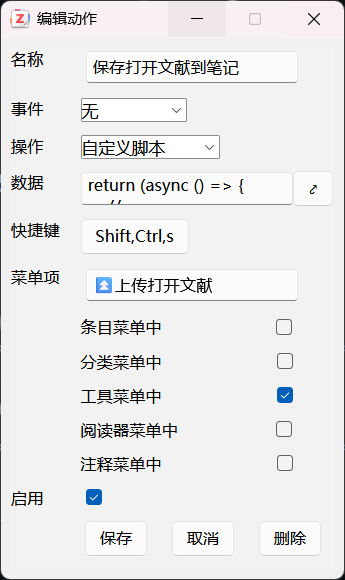
在 Actions & Tags 插件设置中,新建一个动作:
- 名称:保存打开文献到笔记(可自定义)
- 操作:自定义脚本
- 数据:填入下面发送端代码
- 菜单项:⏫上传打开文献(可自定义)
发送端代码:
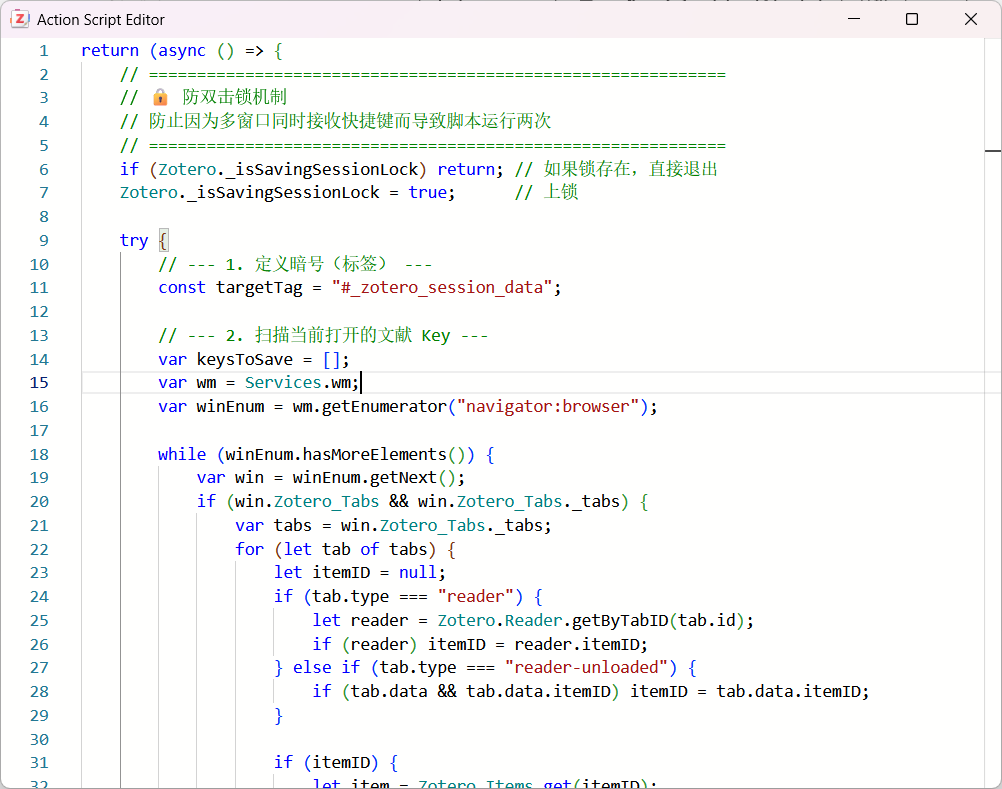
这段代码会自动扫描所有窗口,抓取已打开的文献,并写入一个带有 #_zotero_session_data 标签的笔记中。
return (async () => {
    // ============================================================
    // 🔒 防双击锁机制
    // 防止因为多窗口同时接收快捷键而导致脚本运行两次
    // ============================================================
    if (Zotero._isSavingSessionLock) return; // 如果锁存在,直接退出
    Zotero._isSavingSessionLock = true;      // 上锁

    try {
        // --- 1. 定义暗号(标签) ---
        const targetTag = "#_zotero_session_data";

        // --- 2. 扫描当前打开的文献 Key ---
        var keysToSave = [];
        var wm = Services.wm;
        var winEnum = wm.getEnumerator("navigator:browser");

        while (winEnum.hasMoreElements()) {
            var win = winEnum.getNext();
            if (win.Zotero_Tabs && win.Zotero_Tabs._tabs) {
                var tabs = win.Zotero_Tabs._tabs;
                for (let tab of tabs) {
                    let itemID = null;
                    if (tab.type === "reader") {
                        let reader = Zotero.Reader.getByTabID(tab.id);
                        if (reader) itemID = reader.itemID;
                    } else if (tab.type === "reader-unloaded") {
                        if (tab.data && tab.data.itemID) itemID = tab.data.itemID;
                    }

                    if (itemID) {
                        let item = Zotero.Items.get(itemID);
                        let parentItem = (item.isAttachment() && item.parentID) ? Zotero.Items.get(item.parentID) : item;
                        if (!keysToSave.includes(parentItem.key)) {
                            keysToSave.push(parentItem.key);
                        }
                    }
                }
            }
        }

        if (keysToSave.length === 0) {
            // 即使没文献,也要弹窗提示(根据你的需求),或者你可以改成 return
            Zotero.alert(null, "提示", "⚠️ 当前没有打开的文献,跳过保存。");
            return;
        }

        // --- 3. 寻找或创建“通讯笔记” ---
        var s = new Zotero.Search();
        s.libraryID = Zotero.Libraries.userLibraryID;
        s.addCondition('tag', 'is', targetTag);
        s.addCondition('itemType', 'is', 'note');
        var ids = await s.search();

        var noteItem = null;
        if (ids.length > 0) {
            noteItem = Zotero.Items.get(ids[0]);
        } else {
            noteItem = new Zotero.Item('note');
            noteItem.libraryID = Zotero.Libraries.userLibraryID;
            noteItem.addTag(targetTag);
        }

        // --- 4. 写入数据 ---
        const jsonStr = JSON.stringify(keysToSave);
        const timeStr = new Date().toLocaleString();
        const noteContent = `
            <h1>⚡️ 阅读会话同步数据</h1>
            <p><b>更新时间:</b>${timeStr}</p>
            <p><i>此笔记由脚本自动生成,请勿手动修改内容。</i></p>
            <p>包含文献数量:${keysToSave.length}</p>
            <div id="session_json_data" style="display:none;">${jsonStr}</div>
        `;

        noteItem.setNote(noteContent);
        await noteItem.saveTx();

        // 提示用户
        Zotero.alert(null, "保存成功", `✅ 已将 ${keysToSave.length} 篇文献写入同步笔记。\n👉 请点击右上角【同步按钮】上传到云端。`);

    } catch (e) {
        Zotero.alert(null, "错误", e.message);
    } finally {
        // ============================================================
        // 🔓 解锁 (无论成功还是失败,最后都把锁打开)
        // 延时 500ms 解锁,防止极短时间内的连击
        // ============================================================
        setTimeout(() => {
            Zotero._isSavingSessionLock = false;
        }, 500);
    }
})();
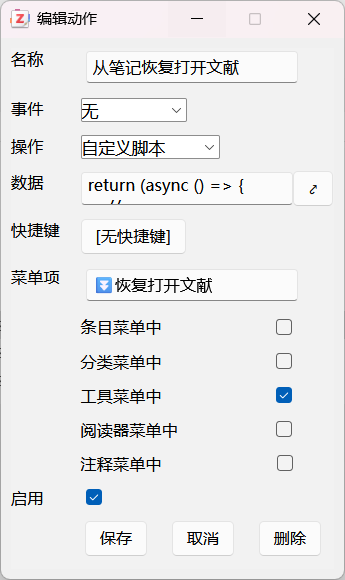
3.2 配置接收端
在 Actions & Tags 插件设置中,新建另一个动作:
- 名称:从笔记恢复打开文献(可自定义)
- 操作:自定义脚本
- 数据:填入下面接收端代码
- 菜单项:⏬恢复打开文献(可自定义)
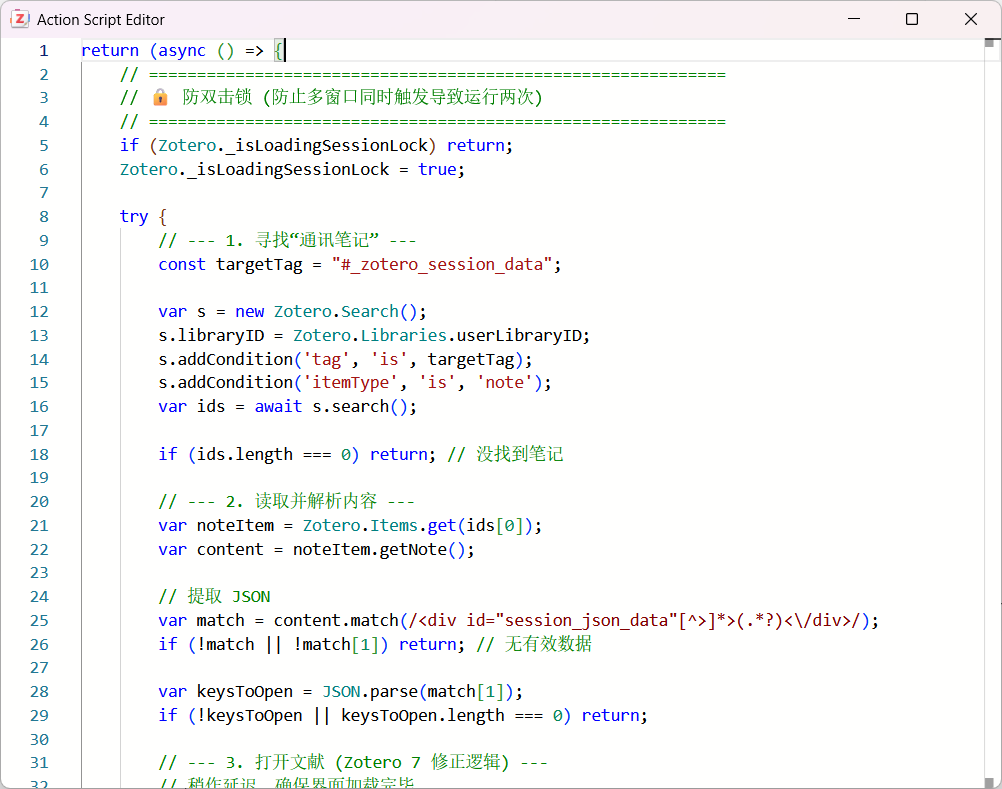
接收端代码:
这段代码会读取那条笔记,解析 JSON,并查找每篇文献对应的 PDF 附件进行打开。
return (async () => {
    // ============================================================
    // 🔒 防双击锁 (防止多窗口同时触发导致运行两次)
    // ============================================================
    if (Zotero._isLoadingSessionLock) return;
    Zotero._isLoadingSessionLock = true;

    try {
        // --- 1. 寻找“通讯笔记” ---
        const targetTag = "#_zotero_session_data";

        var s = new Zotero.Search();
        s.libraryID = Zotero.Libraries.userLibraryID;
        s.addCondition('tag', 'is', targetTag);
        s.addCondition('itemType', 'is', 'note');
        var ids = await s.search();

        if (ids.length === 0) return; // 没找到笔记

        // --- 2. 读取并解析内容 ---
        var noteItem = Zotero.Items.get(ids[0]);
        var content = noteItem.getNote();

        // 提取 JSON
        var match = content.match(/<div id="session_json_data"[^>]*>(.*?)<\/div>/);
        if (!match || !match[1]) return; // 无有效数据

        var keysToOpen = JSON.parse(match[1]);
        if (!keysToOpen || keysToOpen.length === 0) return;

        // --- 3. 打开文献 (Zotero 7 修正逻辑) ---
        // 稍作延迟,确保界面加载完毕
        await new Promise(r => setTimeout(r, 1000));

        var libID = Zotero.Libraries.userLibraryID;
        var openCount = 0;

        for (let key of keysToOpen) {
            // 1. 获取父条目
            let parentItem = Zotero.Items.getByLibraryAndKey(libID, key);
            if (!parentItem || parentItem.deleted) continue;

            let attachmentID = null;

            // 2. 智能查找 PDF 附件
            if (parentItem.isRegularItem()) {
                let attachment = await parentItem.getBestAttachment();
                if (attachment) {
                    attachmentID = attachment.id;
                }
            } else if (parentItem.isAttachment()) {
                attachmentID = parentItem.id;
            }

            // 3. 调用 Reader 打开
            if (attachmentID) {
                try {
                    await Zotero.Reader.open(attachmentID);
                    openCount++;
                } catch (e) {
                    Zotero.logError(`无法打开文献 ${key}: ${e}`);
                }
            }
        }

        // 弹窗提示
        Zotero.alert(null, "同步完成", `⚡️ 已从笔记恢复 ${openCount} 篇文献!`);

    } catch (e) {
        Zotero.logError("恢复会话出错: " + e);
    } finally {
        // ============================================================
        // 🔓 解锁 (0.5秒后释放,防止连击)
        // ============================================================
        setTimeout(() => {
            Zotero._isLoadingSessionLock = false;
        }, 500);
    }
})();
4. 使用
配置完成后,工作流程可以是:
- 离开实验室:
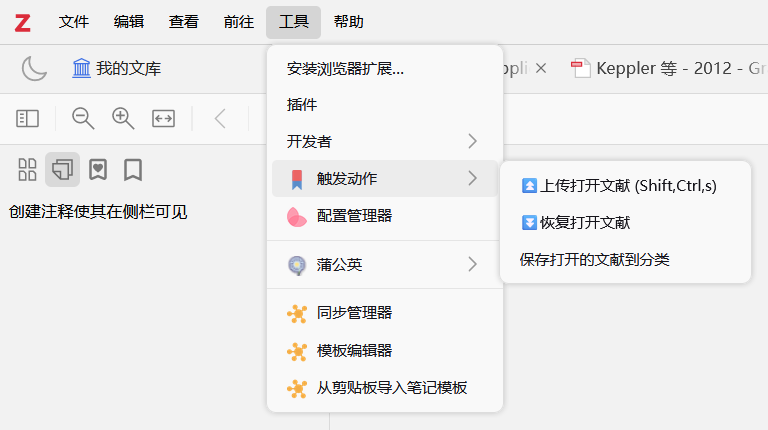
- 通过菜单栏
工具 -> 触发动作 -> ⏫上传打开文献或快捷键,保存正在阅读的文献。 - 点一下 Zotero 右上角的同步按钮,确保笔记传上去了。
- 关机下班。
- 通过菜单栏
- 回到宿舍/家:
- 打开 Zotero,等待同步完成(或者点一下同步按钮)。
- 通过菜单栏
工具 -> 触发动作 -> ⏬恢复打开文献或快捷键,恢复正在阅读的文献。 - enjoy!